MILWAUKEE COUNTY SHERIFF'S OFFICE

SPECIAL OPERATIONS BUREAU
COMMUNICATIONS DIVISION


ADVANCED TACTICAL MAP

Premier CAD

ATM Reminders


INTRODUCTION

Greetings.

I've created this page as a 'friendly reminder' on various issues associated with CAD locations and the Advanced Tactical Map (ATM). This includes tow procedures, Tow/Freeway Sector maps, Preplans and more efficient ways to find verified addresses in the CAD system.

To easily find this page when you need it you will have to bookmark this page on each workstation.
As usual, if you have any questions, suggestions or see any errors, please notify me via county
email or drop me a note.

Enjoy!


Coming soon...
the ATM Quiz !
Prizes for top scores!
Bragging rights!
Heck, maybe even a Trophy!


TABLE OF CONTENTS

Please peruse the site completely. Not all information has a link in the Table of Contents.
Check out the
INDEX to see an alphabetical list of subjects covered.

Location, Location, Location. That's what it's all about.
Location basics for the new dispatcher/call-taker.

Find a list of Overpasses, Security checkpts, Radio Sites, Exits, P & R's, etc., and other shortcuts to ensure address verification.

ATM Basics - all you ever wanted to know about ATM Toolbars

ATM "Tips of the Day" - More of "all you ever wanted to know about ATM"

Cell Towers - in ATM
E911 Basics - as it relates to ATM
Hwy 100/108th St at I94 and I43
Interchanges options for entering the Zoo X, Marq X, etc
US, State and County Highways find an intersection
Less is More
Off Leash Dog Parks
Maps - a variety of documents
Preplans
Intersections Not all duplicates are duplicates.
Shortest Path - it's getting there, but not fast enough!
Tow Procedure

These are not mapping issues, but what the heck...
Ceridian OT Procedures
Miscellaneous stuff - Modifying circumstances, etc.
Daily Log - Instructions on how to send via the digital sender


Looking for a radio site, or maybe all the pedestrian overpasses? Or maybe something else? Peruse this list, they are listed alphabetically...

Looking for... Search with... .
"100 Blocks" - in other words, how far north or south is such and such a street? Name of the street, or a direction and number Example: You want to know how far north Capitol Ave is, enter CAPITOL, See result
Or another Example: You want to know what street is 4300 South, enter S4, See result - you will get a list of all streets that are between S4000 and S4900.
Bike/Hiking Trails TRL Use TRL to get a list of locations where the Oak Leaf Bike Trail crosses streets or some other landmark. You can also search using intersections. Examples:
Common Places: TRL, TRL COLD, TRL BENCH
or an intersection: TRL/COLD, TRL/DREX, etc,
See an example of a common place entry
See an example of a intersection entry .
Branches BRANCH NOTE: there are no addresses associated with these locations. You MUST ask the caller for his/her specific location! They could be in the Courthouse, Safety Building, or even on county Grounds!
Cell Towers CELL Using just "Cell" is going to give you a very long list. If you want to search for a specific cell phone company tower use (you'll still get a list, but not as long):
CELL TOWER A (FOR AT&T sites)
CELL TOWER S (FOR SPRINT AND NEXTEL sites)
CELL TOWER U (FOR US CELLULAR sites)
CELL TOWER T (FOR TMOBILE sites)
CELL TOWER V (FOR VERIZON sites)
CELL TOWER C (FOR CRICKET sites)
Read more about E911 Basics
Cardinal Stritch Univ CSU .
Department of Motor Vehicles DMV .
Exits EXIT DO NOT use a space, example: EXIT310
NOTE: Enter exits just like you enter the Mile Markers, no spaces. Example: MM3 or EXIT6.
Fire Departments FIRE Or Fire Station
"Gates" at Miller Park & State Fair GATE .
Interchanges Use the freeway designation and then the name of the Interchange - this will provide you with all options for that interchange Examples: US45 N/GRAN, STH145 N/GRAN, I43 N/MARQ, etc., etc. For more info, go here
See an example of an interchange common place entry
See examples of an interchange using an intersection
Marquette Univ MU .
Mental Health Complex MHC Example, enter MHC 4 to find all wards that start with a "4"
See an example of a ward here
Mile Markers MM No spaces; example: MM3

Be aware, there may be two separate, different locations for any given exit number; for instance in this example - EXIT 40/MM40 - can be on US45 or US41, so make sure you ask the caller follow-up questions to determine exactly where they are!

Milwaukee Police Districts MILW PD or to get really specific - MILW PD DIST
Milwaukee... MILW Any location name that begins with "Milwaukee" is abbreviated in CAD. Use only MILW for searches on these locations.
Example: Milwaukee Art Museum should be searched for using MILW ART - if you type in the entire word "Milwaukee" you will get no results.
Municipalities City of...(plus first three or four letters of city or village name) Examples: CITY OF BAY, CITY OF GREEN. Generally used for "Field Inspections" - be aware, these are just general locations and do not indicate where your squad actually is. Even though some are villages, all start with City, for consistencies sake.
Oil Dry Locations OIL View the map
Overpasses OP See an example here
Park & Ride Lots Enter the first word (see exception) of the park and ride, followed by a P Example: HOLT P, HALE P, etc. Exception: RYAN ROAD P
Pedestrian Overpasses OP See an example here
Police Agencies City name, plus PD Examples: WHI BAY PD, MILW PD, GREEN PD, etc
Radio Sites RS .
Stop Lights TS In the "address" field, it should indicate if it's a STATE or COUNTY light.
Crash Inv Sites CRASH .
Security Checkpoints in CH Complex POST At one point these locations were referred to as Post1, Post2, etc. That's why they are entered this way.
Do a Shift-F8 to get to the 2nd page; there are several Post Offices listed first.
Univ of Wisconsin - Milwaukee UWM .
Viaducts VIA Example
Walmarts/Walgreens WALG or WALM There's quite a list of these but by no means are all Walmarts and Walgreens in CAD !


THE DAILY LOG AND THE DIGITAL SENDER

In the future, rather than send the Daily Log via FAX we will send an electronic copy to a folder on the network - this will allow anyone who has access to this folder to view and search the Daily Log. Click on this link for a reminder on how to send the Daily Log via the Digital Sender


ATM Basics

ATM Buttons - and their uses

More Coming soon.


E911 Basics

Wireless E911 - a short history

Facing increasing pressure from mobile-phone customers for an effective, reliable 911 calling system, the Federal Communications Commission began taking steps in the late 1990s to force mobile carriers to adopt a wireless E911 strategy. The FCC deployed its E911 plan in two phases. In 1998, Phase I required carriers to deploy an E911 service that could identify the originating phone numbers of all 911 calls, as well as the location of the associated cell tower to within one mile. In 2001, Phase II mandated every mobile carrier offering service within the U.S. to provide either a handset- or network-based location-detection capability. The ALI (automatic location identification) service had to be able to determine an E911 caller's location by the geographic position of the mobile phone within 100 meters and not simply by the location of the associated cell tower. This is usually accomplished by triangulating the signals of three or more nearby cell towers.

Please be aware that perfect conditions for receiving these signals are rare and locations may not be exact. The FCC has regulated the caller's position should be within 100 meters however many things can affect the accuracy of any given location - nearby buildings, windows, even the weather - anything can block or distort a signal...which could easily extend the exact location of any caller far beyond the 100 meter limit.

What to do? The best thing is experience; look at how your calls are coming in on ATM - this will provide you with better judgement when the need to use the lat/long comes into play.

Look in CAD for a list of Cell Towers
(But it may be more helpful to look at ATM!)

Go to the Positron E911 page...(still under construction)

More Coming soon.


MAPS

Freeway Sectors - these are the Patrol areas that each squad is assigned to - NOT to be confused with the Tow Sectors.

Tow Sectors - Not to be confused with the Freeway Sectors.
This map is also available in the Preplan section of ATM. Click here for procedures to access all Preplans.

FYI - the above maps indicate the correct name for each freeway section as it is used in CAD.

Oil Dry Locations.

"T I M E" Regions - Need to send a teletype?


Back to Table of Contents

TOW PROCEDURES


Start here for a refresher course on all tow related procedures or follow the links to go to a specific subject.

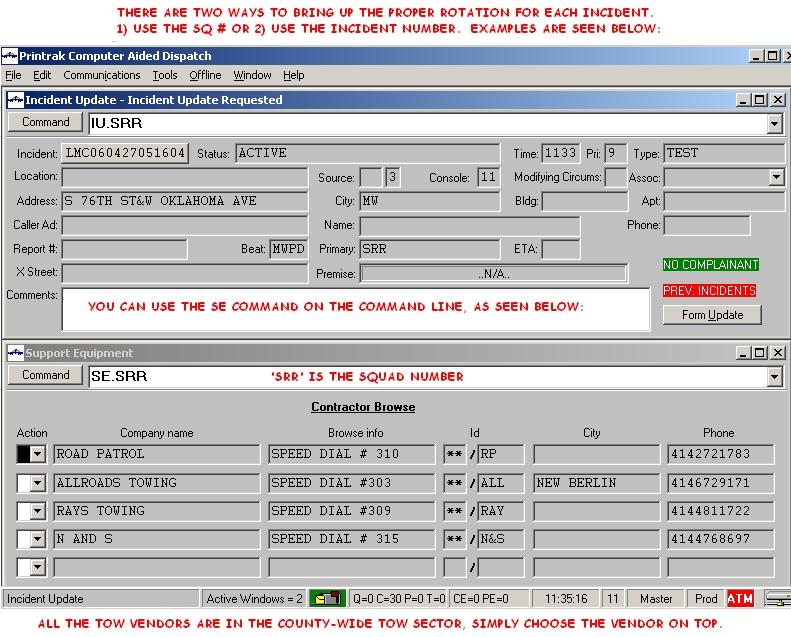
Simplified steps to "send" a tow:

1 - Choose correct beat during address verification
2 - Determine if it's a light or heavy tow
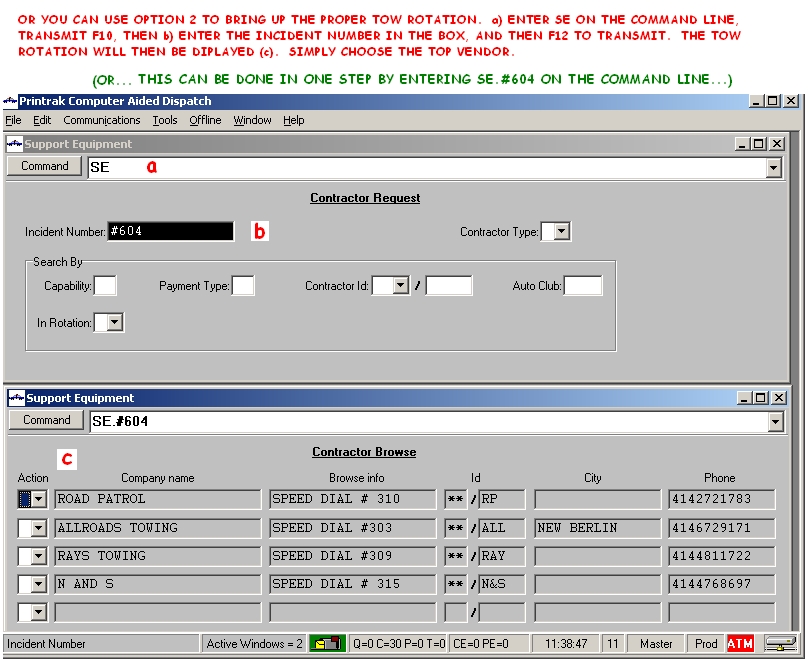
3 - Use the SE command to "Send" a tow
     (3a) If it's a heavy tow you must use this syntax - SE.SQ#.TY;H OR SE.INC#.TY;H
4 - Use the SU command to cancel or retract a tow, if needed


Choosing the correct beat
Light vs. Heavy Tows
Light Tows
Heavy Tows
Cancel/retractions - the 'C' and 'R' commands
SU Comments Field
Tow Sector Map
Multiple Tows/Same Incident
Secondary Tow list


CHOOSING THE CORRECT TOW BEAT

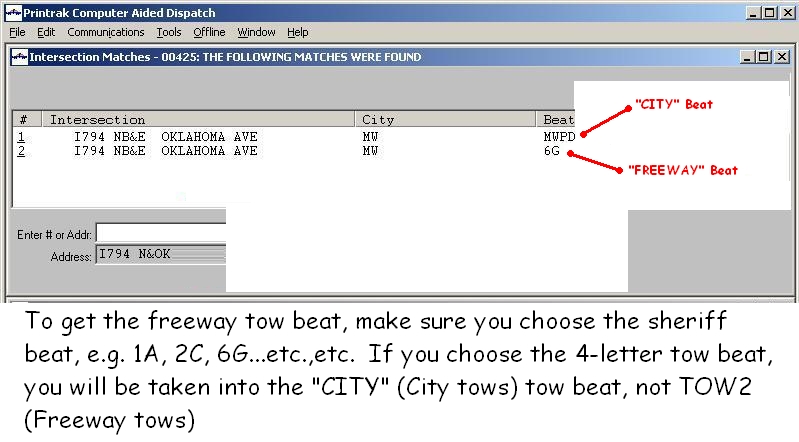
All locations in the county have a tow beat assigned to them. In order for the Tow Rotation to work properly, the correct beat has to be chosen during address verification. Any given address in the county should automatically be in the correct beat, however, on the freeway system it's possible to have multiple choices. CAD is designed to give us these multiple choices, however care must be taken to choose the correct beat so the tow rotation will provide you with the correct tow vendor.
Be advised: the freeway beat will not always be on the top!

See the image below for an example.


Go back to the start of Tow Procedures
Go back to the main Table of Contents

LIGHT vs. HEAVY TOWS

There are two tow rotations based on county contract with various vendors, Light Tows and Heavy Tows. The Tow Sectors for each rotation (light or heavy) are the same; however, the tow vendors are not. The Light Tow Procedure should be well known by now.
The procedure for heavy tows require additional syntax: TY;H
Click here for further details on the Heavy Tow Procedures.

You may notice that there is only one tow vendor per tow sector. However, that has not always been the case, and it is likely that at some point in the future there will be multiple vendors in each sector. So, even though there is only one tow vendor per sector, we will still need to use the tow rotation to 'send' the tow; obviously it will not be needed to rotate vendors at this time but we must be able to track the numbers of tows and also report any problems with the tow vendor meeting the time and/or equipment requirements.


Go back to the start of Tow Procedures
Go back to the main Table of Contents

LIGHT TOWS


Go back to the start of Tow Procedures
Go back to the main Table of Contents

HEAVY TOWS


At this time, only heavy trucks on the freeway are rotated.
In order to bring up the correct tow rotation for heavy tows, you must use the following syntax:

TY;H

You can enter the heavy tow rotation from the command line or from the form.
The images below explain the procedure in detail.

Please remember to use the SU Comments form when there is a cancellation or retraction!


Go back to the start of Tow Procedures
Go back to the main Table of Contents

SU COMMENT FORM

How to add comments into the SU form for Cancelled and Retracted Tows.
Read more about
"C and R"

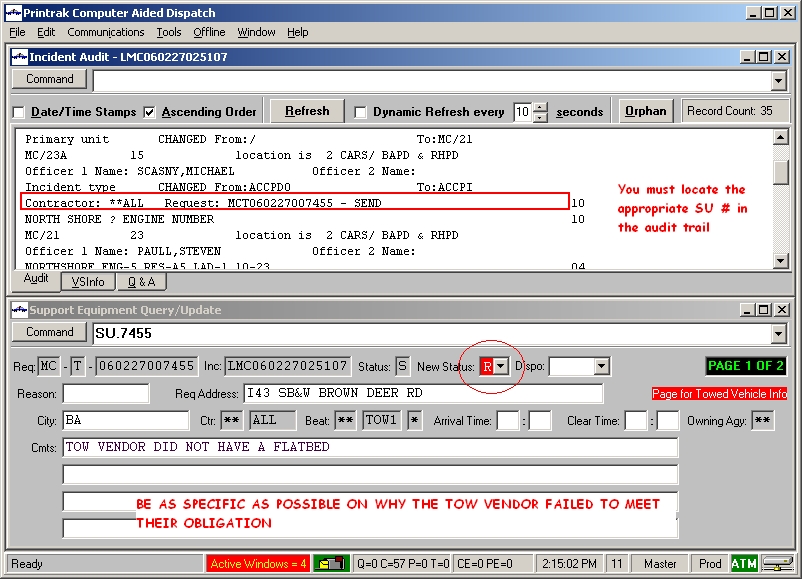
If a tow vendor is cancelled or retracted for whatever reason this information must be noted in the SU Comments field. These comments are especially important if a tow vendor is not fulfulling its obligations. Our records must reflect specific reasons on the exact problem with said tow vendor. To save time, enter these comments the same time you are cancelling or retracting the tow.

The image below indicates where the tow number can be found.

In this case the tow number is 7455. If you are entering comments on the same day as the call was created, then those four numbers are all you need. The syntax on the CAD Command line for a light tow is:

SU.7455 (or SU.7455.TY;H if this was a heavy tow number)

(then F10 to transmit) This SU Comment Form is shown in the bottom screen below.

Please enter the appropriate comments in the field designated:

Cmts:

In this particular case, the vendor did not have a flatbed, so that comment is entered in this field.


Go back to the start of Tow Procedures
Go back to the main Table of Contents


THE DIFFERENCE BETWEEN C AND R

The 'C' and 'R' commands are to be used under the following circumstances:

Cancellations ('C') are to be used if the owner returned to the vehicle, the vehicle started and they moved it off on their own, or a valid driver arrived, etc. Since there is only one tow vendor in each sector, the same tow vendor will always be on the top of the rotation list, but it is still important to enter this information for reporting purposes. Please enter a comment in the SU screen/comments field explaining why the tow was cancelled.

Retractions ('R') are to be used if the vendor is unable to take the tow; i.e. their phone line is busy, they don't answer, they don't have the proper equipment (perhaps a flatbed is required, but they don't have one available), etc. Again, even though they do not technically lose a turn in the rotation (since there is only one tow vendor per tow sector) it is still extremely important (even more so now, actually) to enter the 'R' and provide specific reasons for the retractions in the SU/Comments field.

***If the tow vendor is unable to comply with the tow request,
call the tow vendor adjacent to that sector for the tow;
however be advised, this information must be entered in the SU Comments Field so
we know who towed the vehicle and why the assigned tow vendor
was unable to perform the tow.***


Go back to the start of Tow Procedures
Go back to the main Table of Contents

SECONDARY TOW LIST

ASSIGNING A TOW FROM THE SECONDARY TOW LIST:

When use of the tow rotation is not required, use this option.

SE [F10]

ENTER INCIDENT #

Enter an ‘S’ in the ‘In Rotation’ field (to pick from the Secondary Tow List) [F12]

This will give you a list of all the tow companies we currently have entered in CAD. These are not rotated. Simply choose the tow vendor requested by entering an ‘S’ in the Action Field next to that vendor. If the tow vendor you want is not there, choose the tow vendor ‘ALT’. Once the tow vendor is chosen, we then must also enter comments on why this specific tow vendor was called. For instance, ‘operator requested AAA’, or in the case of ‘ALT’, you need to enter the tow company called; e.g. ‘operator requested Sam’s Towing’.


Go back to the start of Tow Procedures
Go back to the main Table of Contents

TOW SECTOR MAP

Follow this link to go directly to the tow map . The Tow Sector map is also available in the Preplan area of the ATM map. This map will show you the tow sector areas and the tow vendors for each sector. These tow sectors should not be confused with the patrol (freeway) sectors - they are two different things.


Go back to the start of Tow Procedures
Go back to the main Table of Contents

MULTIPLE TOWS FOR SAME INCIDENT

A friendly reminder regarding the Tow Policy:

For incidents that require more than one tow, the same tow vendor should be sent for all of them, however, use the SE command only once regardless of the number of tows. Of course, you will still want to indicate (in the audit trail) when you have made these subsequent calls for the additional tows.

There is an exception to this - if the same vendor cannot handle all the tows, give them what they can do, then give the remaining tows to the next closest vendor (this will require an additional SE command, but only if different vendors are sent!)


Go back to the start of Tow Procedures
Go back to the main Table of Contents

HWY 100 at I94 and I43

Just a friendly reminder for freeway locations on I94 and I43 at the cross streets 108th St/Hwy 100.

I43 near Hale X:

On I43, even though the freeway directionals are N/S bound, you must use W or E bound for CAD to recognize the address - example - I43 E/HWY - (this is actually NB on the freeway signs); likewise - I43 W/HWY - is SB on the actual freeway signs. Be advised, 108th St is also available on I43, in both directions (W/E bound).

However, also be advised there is also a HWY 100 that crosses I43 in Sector 1 at Brown Deer Road! Make sure you choose the correct directional to get the choice you want!

Hwy 100 on I94:

On I94, things are a little confusing as well. North of I94, 108th St is technically Mayfair Rd. South of I94, the name is technically 108th St. So, if you are going WB, Mayfair Rd is an option, but if you are going EB, only 108th St is an option. There is good news! HWY 100 will work for both directions (E/W bound).

***So, the bottom line is:***

At Hwy 100/108 St, you may wish to use HWY 100 for both I43 and I94, (both are W/E directions) - for me, anyway - it's easier than trying to remember all the options!

P.S. Another friendly reminder: Less is More!


Back to Table of Contents

TO VIEW A PREPLAN IN ATM, FOLLOW THESE INSTRUCTIONS:


Back to Table of Contents

INTERSECTION ISSUES...

The corner of Howard and Howell is a good example of how CAD recognizes intersections. As you can see from the image below, the first choice listed is not always the best choice!

At first glance, you may pick the first choice. This would not be wrong, because it is the exact same location as #2 and #3, however, the #1 location is very confusing, but still not an error.

Howell is where E Howard and W Howard meet, so there are 3 viable intersections that CAD will recommend.

#1 is showing the intersection of E Howard and W Howard
#2 is showing the intersection of E Howard and Howell, and
#3 is showing the intersection of W Howard and Howell.

If you did a location detail (LD.HOW/HOW) with each of these choices, ATM would take you to the same intersection no matter which choice you choose. However, in this case, the first choice is just too confusing - sooooo, please be sure to look at the choices carefully - ! Thanks.

Also be aware of the slash; the slash indicates to CAD that you are looking for an intersection. If you are not looking for an intersection, don't use the slash!


SHORTEST PATH FUNCTION IN ATM

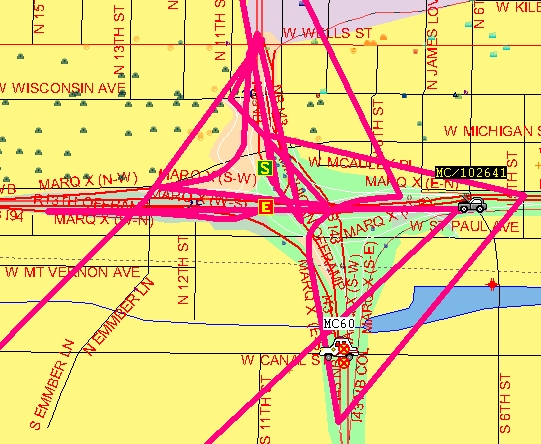
The 'shortest path' function in ATM has been improved, but it is still not "ready for primetime" so to speak.

At this time, configurations for the Freeway system are my priority; this is an ongoing process and will take some time to complete. Be advised: if you use it, be aware that for most routing, ATM is providing the shortest path based on actual distance, regardless of one-way streets, N or SB directions, etc. (for instance, it could show you going EB in the WB lanes!)

If you have a few spare minutes, do a test of shortest path from the Safety Building to your home address and let me know your results. Print out a copy of the map and the driving directions so I can make improvements in these other areas. If your results look like a laser-light show gone awry (remember Logan's Run?) don't be surprised, but please let me know!

Click on the image to see an example of the "laser-light show effect". This is not what we are looking for...


Back to Table of Contents

Off Leash Dog Parks

See Chatka Run!


That's my girl.

There are two Off Leash Dog Parks in Milwaukee County;
to locate them search using either DOG or OFF as your location.
You may also find them by using their official names:

1. Runway Dog Park
2. Granville Dog Park


Chatka - she's either running or chewing.


Back to Table of Contents

MISCELLANEOUS ITEMS

Entering name and phone numbers
Entering Modifying Circumstances
Entering a plate
AMBUL type bypasses


Modifying Circumstances

Just a friendly reminder on how and when to use the following modifying circumstances.

BU code - when MCSO requests another agency for baaackup on the freeway system

BY code - entered when a busy signal or recording is reached when transferring calls to MPD/MFD

TR code - entered for all incidents that occur on Transit buses


AMBUL type - Bypass Procedure

The AMBUL type is associated only with the FD agency. Therefore, if you need to bypass an AMBUL call, you will have to change the Agency to 'FD' when the bypass form pops up.

As a side note, if you do not sign into the FD agency when you logon to CAD, you will not see any calls with the AMBUL type in the pending queue. So, it's a good idea to sign on to both MC and FD agencies when you sign in. Cheers!


Back to Table of Contents
Back to Miscellaneous subjects

Caller Name/Phone Number

It's a good idea to get in the habit of collecting caller name and phone numbers, especially if it's a situation where our squads will be responding. It's important to enter this information in the correct way; using this syntax puts the caller name/number in the fields that are in the first page of a call; this makes it much easier to find it (it's very hard to find this information when it's in just floating about in the audit trail). So, in the comments field use the following syntax:

CN;Marcia Brady
CP;2125551234

then, [F12] to transmit.

Click on image to see an example.
(Depending on the browser you are using,
after you follow this link, you may
have to click on the image again to enlarge it)


Back to Table of Contents
Back to Miscellaneous subjects

PN Code in comment field

Likewise, you need to enter plate information properly as well. When a squad initiates a call and you enter the info:

41.US45 N/mill.123ABC.CM;RED BUICK.T;DISABL
(This is telling us SQ 41 is NB on US45 at Mill, the plate number is 123ABC. It is a disabled vehicle.)

This syntax will automatically put the plate info in the correct field and run the plate via Open Query. However, often times you will receive plate info after a call has already been created. In this case, you must enter the plate in the comments field using this syntax:

PN;123ABF

This will enter the plate info in the proper fields AND allow us to search our incidents for this plate. It is much easier to search for an incident number if you know the plate. However, if the plate is not entered using this sytax, we cannot search for it. (Using this syntax also runs the plate via Open Query, thus saving even more time!)


Back to Table of Contents
Back to Miscellaneous subjects


BASICS - FOR THE BEGINNER. . .

Hello new dispatchers! (and everyone else)

This section covers the basics to help you can find locations in the CAD system.


There are three ways CAD recognizes addresses:

1) An actual address, for instance, 821 W STATE ST

2) An intersection, for instance, STATE/6TH, or I94 N/RYAN
(You must use the slash for CAD to recognize an intersection - follow
this link for more on intersections)

3) A common place, for instance, 'GRANT PARK' or 'OFF LEASH DOG PARK'


When trying to find locations in CAD a good rule to remember is:

'LESS IS MORE'

What this means is, say you are trying to find any given intersection, 'common place' or address - use just the first two or three letters of the name - CAD will provide all locations that begin with those letters. In some cases you may get far too many choices, but in most cases there will be at most only 4 or 5 locations to choose from during the verification process, which is better than not having any choices at all.

For instance, by entering

TE/WR

CAD will return the intersection of Teutonia and Wright.

This feature can be very helpful especially if you are not sure how to spell a location name. I can never remember how to spell Kinnikinnick, so I always just use 'KIN', example:

2600 S KIN

Parks are also a good example - if you enter GRANT PARK and use that as a location for an incident that will not be enough information...you have to specify exactly where in Grant Park, for instance a picnic area or play field...use the first name of a park (any park) and the area in question:

GRANT PIC (to search for a picnic area)
GRANT SHE (to search for a shelter, etc)
Or just enter GRANT and peruse the list.


INTERCHANGES

The interchanges can be tricky. However, there are two main options available for entering these locations.

1) You can use the common place location, for instance,

ES ZOO
NW STAD,
NW MITCH
etc.

2) Or you can use an intersection; the first half of the intersection is the freeway, the second half is the name of the interchange:

US45 N/GRANVILLE (Or using 'less is more' - US45 N/GRAN)
I43 S/MARQ
I794 N/LAKE
etc.

CAD will then give you all the choices applicable for this interchange. Simply choose the one that you want. Try it!

Those are the basics for entering an address in CAD and getting a verified address!

Please remember: Less is More! when entering locations.

If you come across locations that are not in CAD, or if you can think of other locations we need, or if you have any suggestions or other problems please contact me via county email, or put a note in my mail box. Thanks for your cooperation...

One more thing:

Please read how to pick the correct tow beat !!


Back to Table of Contents

US, STATE and COUNTY Highways

Information on County, State and US highways is now available in CAD. To get a verified address (intersections only) for these locations use either US, STH or CNTY in front of the highway designation.

Examples:

CNTYOO (Be advised, that's two "oh's", not zeros)
CNTYNN
STH36
US18

On some occasions, the city follows the highway:

STH24_HC
US18_WU

If the caller doesn't know if it's a county or state highway, be advised that county highways (CNTY) are letters, US and STH are numbers.

Please advise on duplicates, errors, omissions or any other suggestions

A few examples follow:

Example #1

Example #2

Example #3


Home

Last Updated: March 30th, 2010


Back to the top